




ZumoSpin Casino App
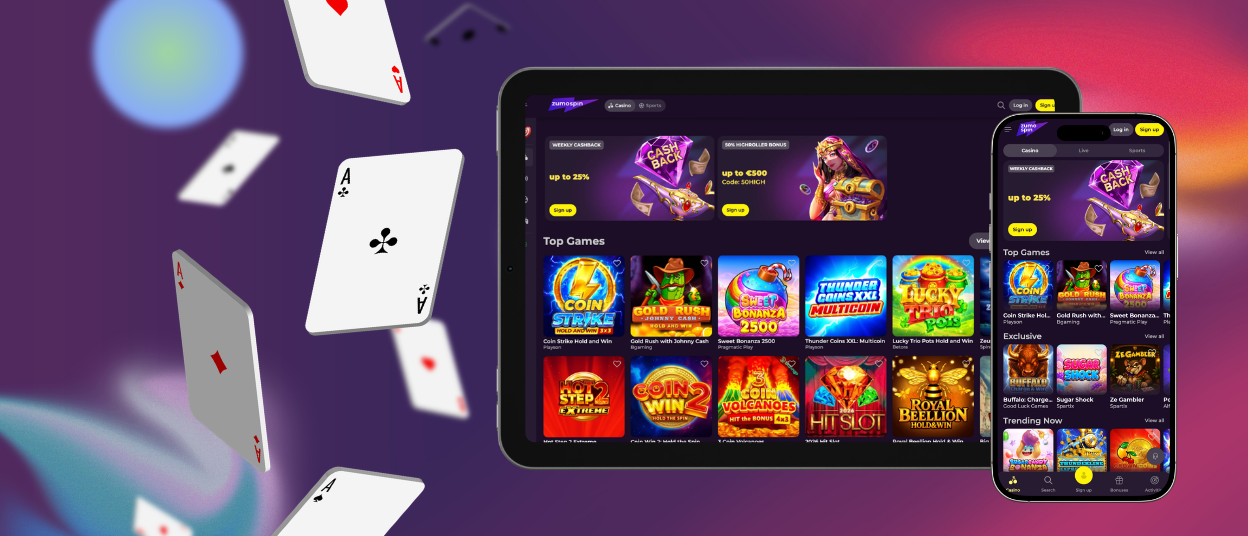
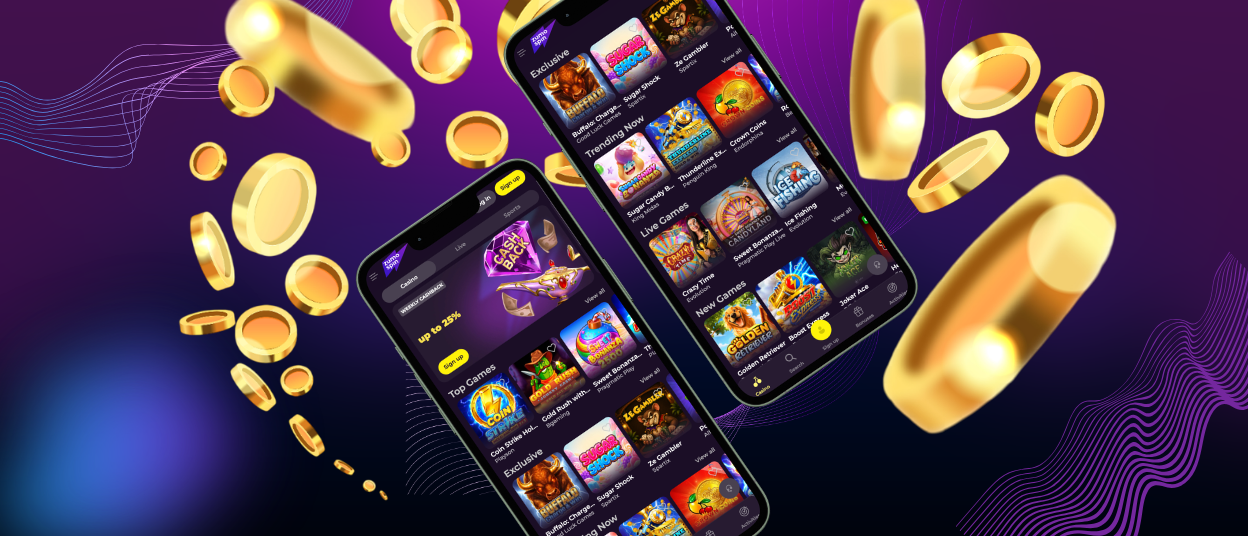
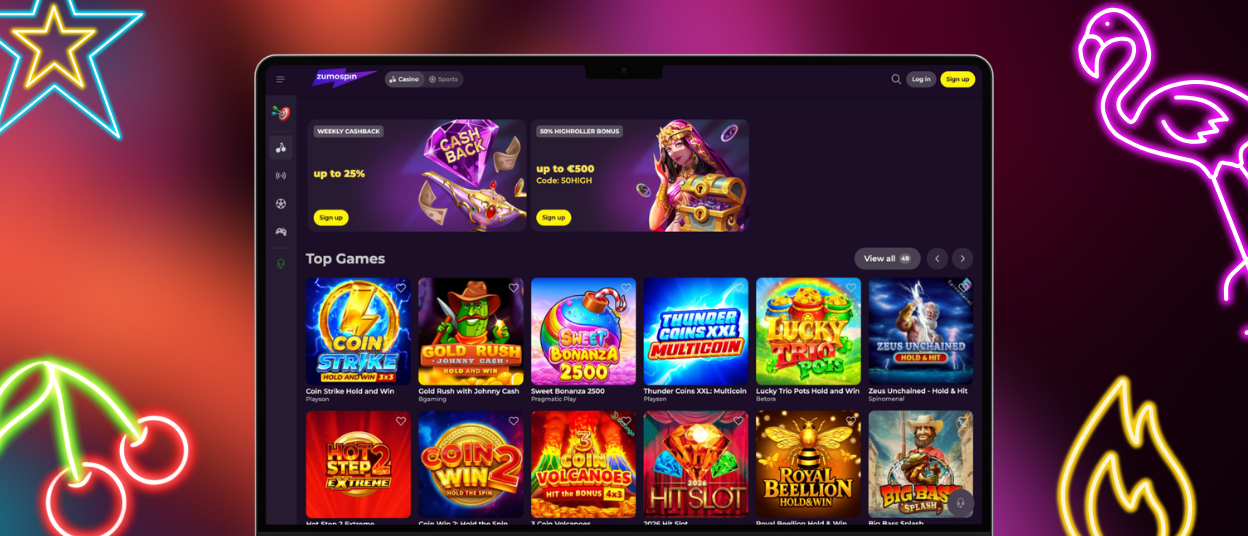
The ZumoSpin app turns a browser tab into a permanent icon on your device. Behind that icon, the full platform is ready, from games to the bonus tab. Installation goes through our website, suits players from the Netherlands, and takes a couple of minutes. The setup is free, and the result works like a regular application.

Why Players Choose the App
The first reason is convenience: ZumoSpin is always one tap away, without typing the address or searching through browser tabs. Online slots open the moment the app loads, and the whole screen belongs to the game because the browser frame disappears. Once you allow them, notifications about rewards that are about to expire arrive automatically, so you don’t miss anything.
The second reason is that nothing has to be given up. The Zumo Spin application keeps the catalog complete, deposits go through from the phone at the usual speed, and withdrawal requests are accepted with the same limits as on a computer. Even the verification process is simpler here, since document photos are taken with the camera and uploaded right away.
How the PWA Format Works
The ZumoSpin application is built on PWA technology, which means the website itself becomes a program on your device. Nothing is downloaded from a marketplace, and no account in Google Play or the App Store is involved. The browser sees that our platform supports the format and offers to install it, after which the icon takes its place among your other applications.
This format also solves the question of updates. The icon always loads the current version of the Zumo Spin mobile casino, because the content comes from the web at every launch, so there is nothing to install a second time.
How to Install the ZumoSpin App
Installing the ZumoSpin app looks slightly different on each system, since the browser does the work and every browser has its own menu. Android runs through Chrome, Apple devices through Safari, and computers create a shortcut instead of an icon. None of the three routes needs any preparation beyond an internet connection. Below are short instructions for each of them.
Android Phones and Tablets
Chrome handles the whole process at ZumoSpin, and the model of the device plays almost no role. Even gadgets from past years cope with the setup without trouble, because the app itself weighs very little. The whole process takes just four steps.
- Open the ZumoSpin website in the Chrome app.
- Tap the three dots near the address bar.
- Choose Add to home screen, then confirm.
- Find the new icon and place it where you like.
About a minute later the ZumoSpin application is ready to use. Chrome sometimes suggests the installation itself through a small banner, which shortens the path even further.
iPhone and iPad
On Apple devices Safari replaces Chrome, and the route runs through the Share menu. Nothing needs to be prepared in advance, since Safari is present on every iPhone and iPad by default. Three steps cover the installation.
- Open the site in Safari and tap the Share button.
- Select Add to Home Screen in the list.
- Confirm the name and finish the setup.
The new ZumoSpin icon starts the platform full-screen, exactly as on Android. On iPad the same layout simply gets more room, and both orientations are supported.
Windows and Mac Computers
Desktop Chrome creates a separate window instead of a home-screen icon. The option is called “Create shortcut” and appears in the three-dot menu under Cast, Save, and Share.
After confirmation, ZumoSpin opens outside the browser, with its icon on the taskbar or dock. The window remembers its size between sessions, so the setup is done once and needs no attention later.
Why There Is No ZumoSpin APK
An APK file would only duplicate what the PWA already does, so we simply do not issue one. Everything installs from the official website, which also protects members from fake files. If an outside page offers a ZumoSpin APK for download, that page has no relation to us and is best avoided. Checking the address line before installing is the only precaution worth taking.
Icon or Browser: Picking the Format
Both formats open the same ZumoSpin account, so the question is comfort rather than features. The table matches typical situations with the handier option.
| Situation | Handier option |
| Play several times a week | The installed icon |
| A quick balance check | The installed icon |
| Someone else’s device | The browser tab |
| A long evening at the computer | The desktop shortcut |
The gaming experience does not depend on the choice, and switching between the two takes seconds. Many members at Zumo Spin keep both formats and pick one by mood. Deleting the icon and returning to browser play is possible at any moment.
Requirements and Performance
Hardware demands at Zumo Spin are minimal, because games stream from servers instead of being stored on the device. Newer phones naturally give the smoothest picture, yet older models handle the platform just as well, since everything is optimized for weaker processors too. The icon takes a few megabytes at most, so free storage is rarely an issue.
A stable connection matters more than the hardware at ZumoSpin Casino. Slots run comfortably on 4G, while live streams look best on stable Wi-Fi or 5G, where the video keeps its quality without interruptions. If a question about performance comes up, live chat brings the Support Team into the conversation at any hour.
FAQ
Will My Favorites and History Appear in the App?
Yes, everything saved in the profile shows up wherever you sign in at Zumo Spin. The heart-marked games and the play history are stored on the account, not on the device. The icon reads the same data as the browser.
What Should I Do After Switching to a New Phone?
Install the icon on the new device in the same minute-long way and sign in to ZumoSpin. The balance and every setting are already in place, since nothing was kept on the old hardware. The previous installation can simply be deleted.
Are Games Slower Inside the App Than in the Browser?
No, the speed is identical, because both formats load the same content from the same servers. The icon even feels quicker in practice, as it skips the browser start. Live tables at ZumoSpin casino stream equally well in both cases.


